Choose a reading rhythm
Open a local comic and its reading settings. Page mode is useful for focusing on one page; Scroll creates a continuous vertical flow; Spread pairs pages for a wider view.
Spread mode treats the cover separately, then groups subsequent pages in pairs. On a narrow phone screen, switch back to one page when the lettering is too small.
Check the direction before you start
Set right-to-left for manga designed in that order, or left-to-right for comics that follow that direction. This affects page progression and the visual order of a spread.
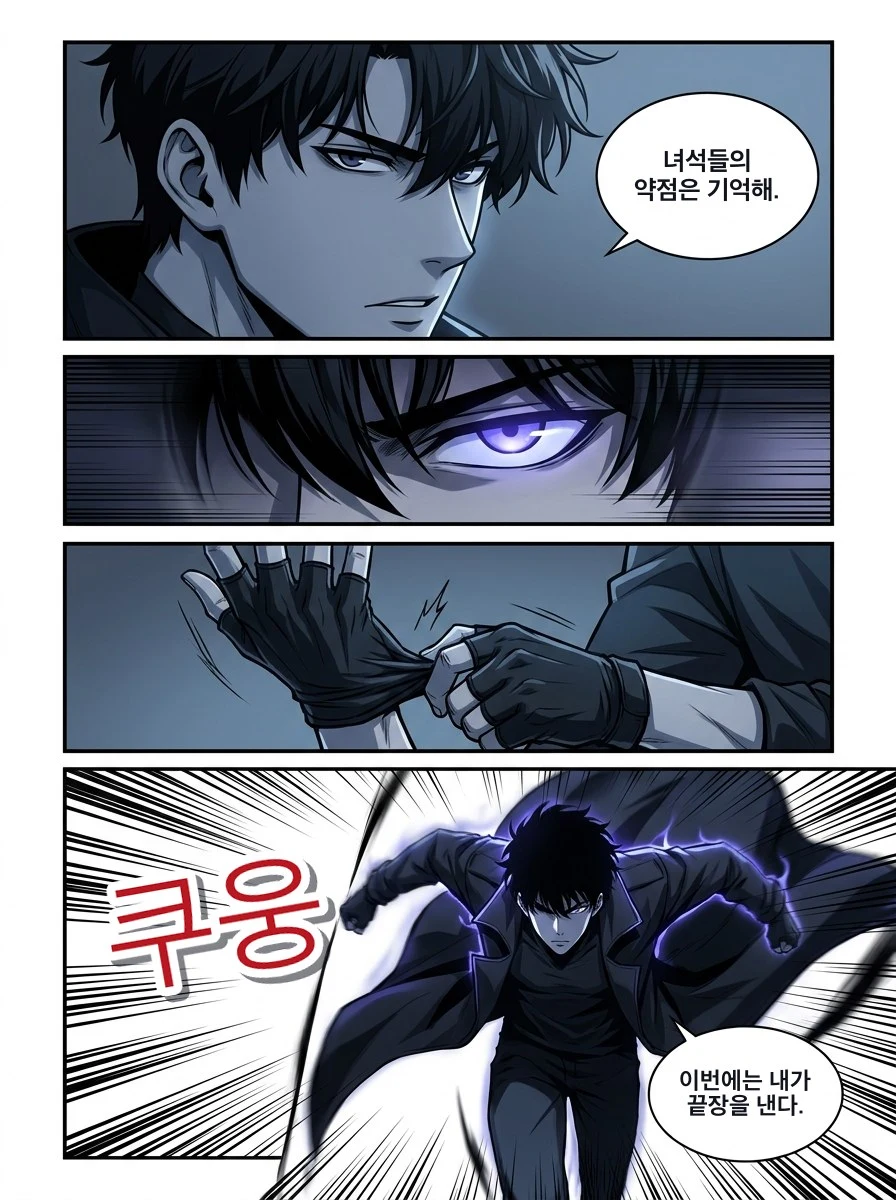
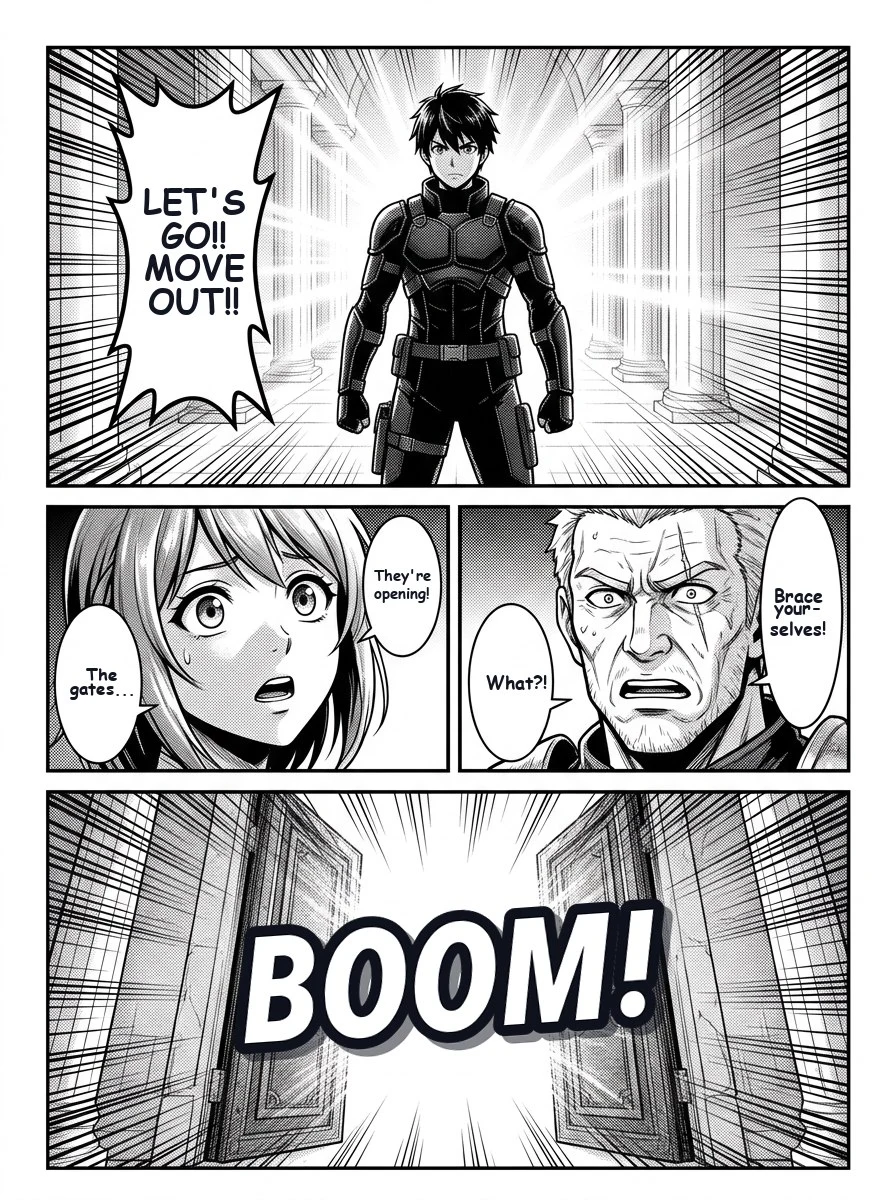
A translated page still uses the original artwork. Changing the reader direction does not rearrange panels or rewrite the story’s intended reading order.
Adjust the page surface
- Choose the page tone that is comfortable in your current lighting.
- Use full-width or comfort fit to change how much of the screen the page occupies.
- Adjust reading brightness as needed.
- Zoom in to inspect small dialogue and switch to the original when checking a translation.
Set recurring names in the glossary
Open the series glossary, enter an original name or term and its preferred translation, then save it. Cloud translation uses locked terms as context for later requests.
Existing cached pages may retain an earlier translation. A glossary is a consistency aid for new translation requests, not an automatic rewrite of every page you have already read.
Keep reading preferences separate from translation
Changing page layout or direction changes how you read. Generating a new cloud translation is a separate operation and requires an internet connection.
Development builds may expose additional translation settings. Check the labels in your current version, especially when selecting an on-device engine or adjusting text layout.